Add Hosts to Allowed Hosts
This option enables you to allow different SSH access methods to different remote hosts. You can provide the desired remote host IP, subnet or host name in order to connect to the OVOC server through SSH.
| ➢ | To add Hosts to Allowed Hosts: |
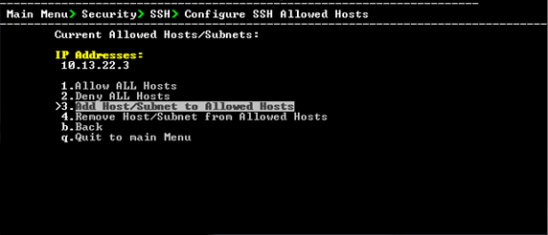
| 1. | From the Configure SSH Allowed Hosts menu, choose option 3, and then press Enter. |
Add Host/Subnet to Allowed Hosts
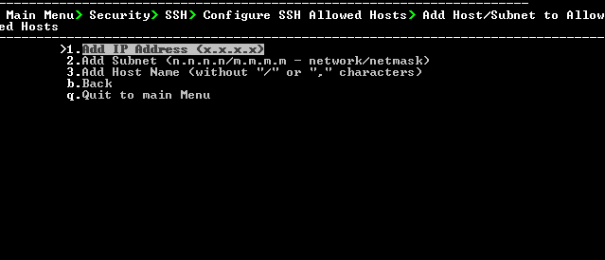
| 2. | Choose the desired option, and then press Enter. |
| 3. | Enter the desired IP address, subnet or host name, and then press Enter. |
When adding a Host Name, ensure the following:
| ● | Verify your remote host name appears in the DNS server database and your OVOC server has an access to the DNS server. |
| ● | Provide the host name of the desired network interface defined in “/etc/hosts” file. |
| 4. | Type y to confirm the entry, and then press Enter again. |
If the entry is already included in the list of allowed hosts, an appropriate notification is displayed.
When the allowed hosts entry has been successfully added, it is displayed in the SSH Allow/Deny Host Manager screen as shown in the figure below:
Add Host/Subnet to Allowed Hosts-Configured Host